Signing in
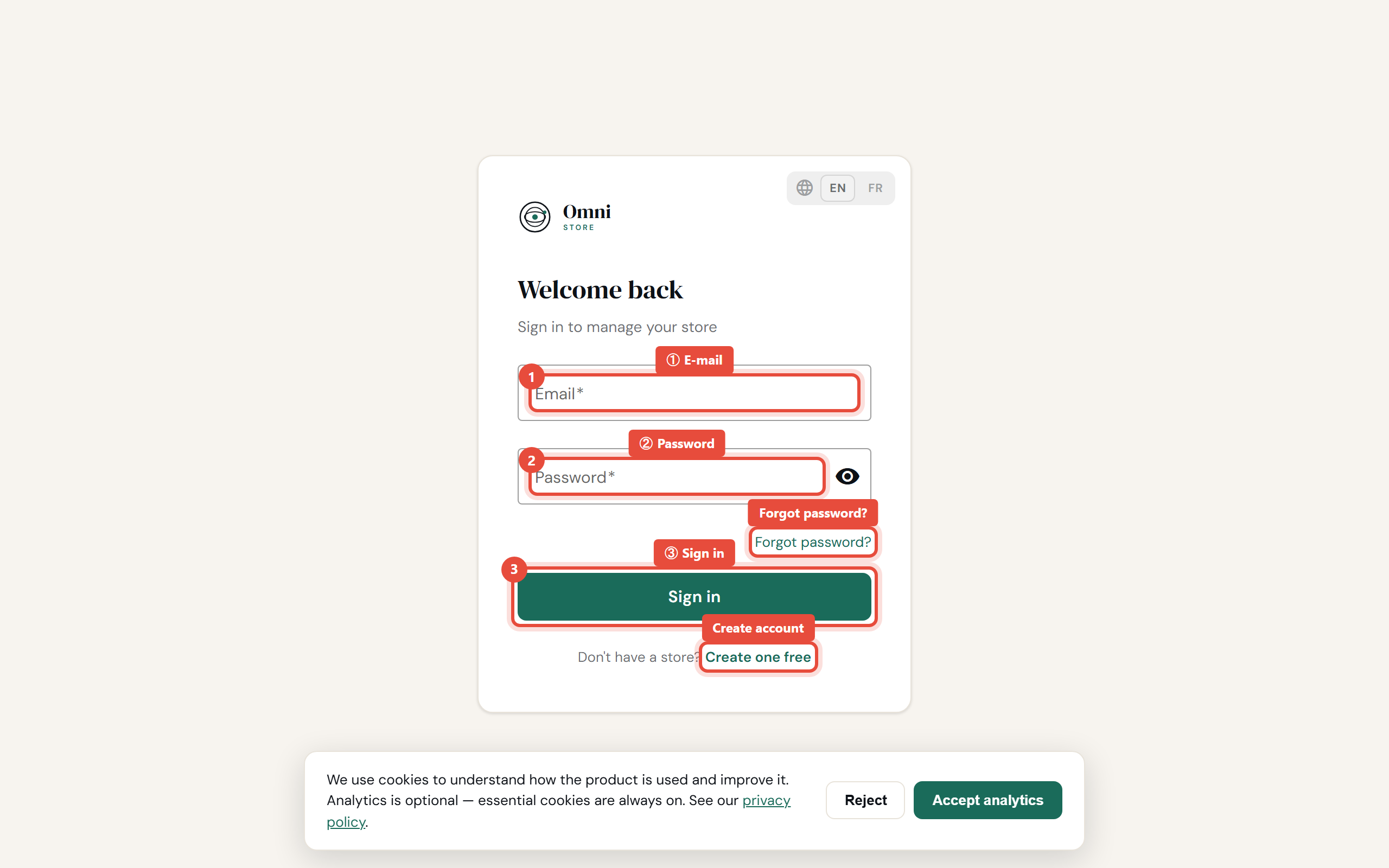
Sign in
- Go to the Omni Store login page.
- Enter the email and password for your account.
- Select Sign in.
You'll land on your dashboard.
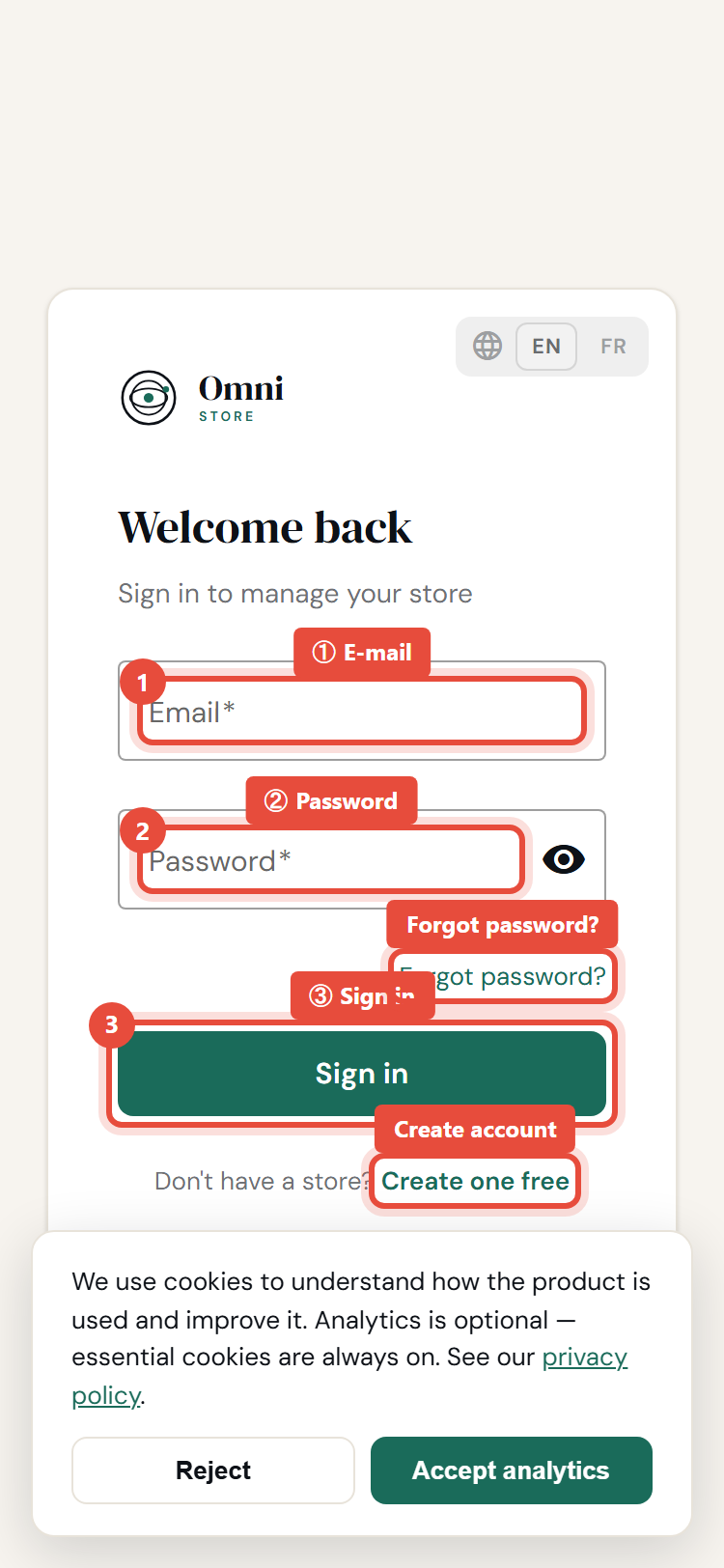
Mobile view
Verify your email first
If you haven't verified your email yet, you'll be prompted to. Open the verification email and select the link, or request a new one. See Email verification.
Staying signed in
Omni Store keeps you signed in securely between visits, so you don't have to type your password every time. If you're on a shared or public computer, always sign out when you're done.
Sign out
Open your account menu and select Sign out. This ends your session on that device.
Trouble signing in?
- Wrong email or password - double‑check for typos and caps lock. If you've forgotten your password, use Reset your password.
- Account not verified - check your inbox (and spam) for the verification email.
- Invited to a store? - if a colleague invited you, use the link in your invitation email to accept it and set your password. See Accepting an invitation.
Still stuck? See Troubleshooting.