Password, profile & security
Update your profile
Your profile is your name as it appears to your team and on activity records.
- Open your account settings.
- Update your first name and last name.
- Save.
Change your password
If you know your current password and want to change it:
- Open your account settings.
- Select Change password.
- Enter your current password, then your new password twice.
- Save.
Your new password must meet the same strength rules as at sign‑up: 10–128 characters, with at least three of four character types (lowercase, uppercase, number, symbol), and no leading or trailing spaces.
Reset a forgotten password
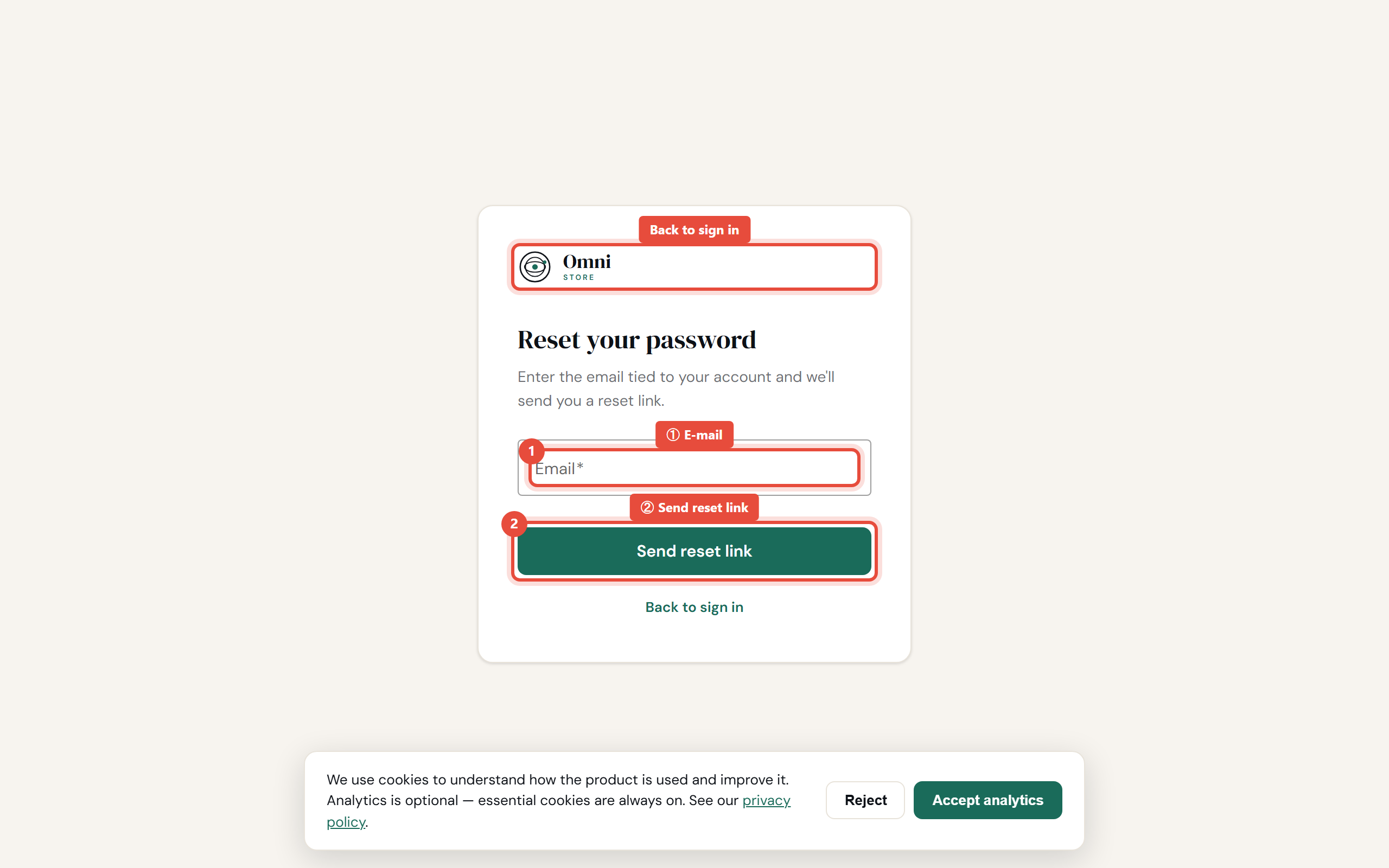
If you can't sign in because you've forgotten your password:
- On the login page, select Forgot password?
- Enter your account email and submit.
- If an account exists for that email, you'll receive a reset link. Open it.
- Choose a new password and confirm.
Mobile view
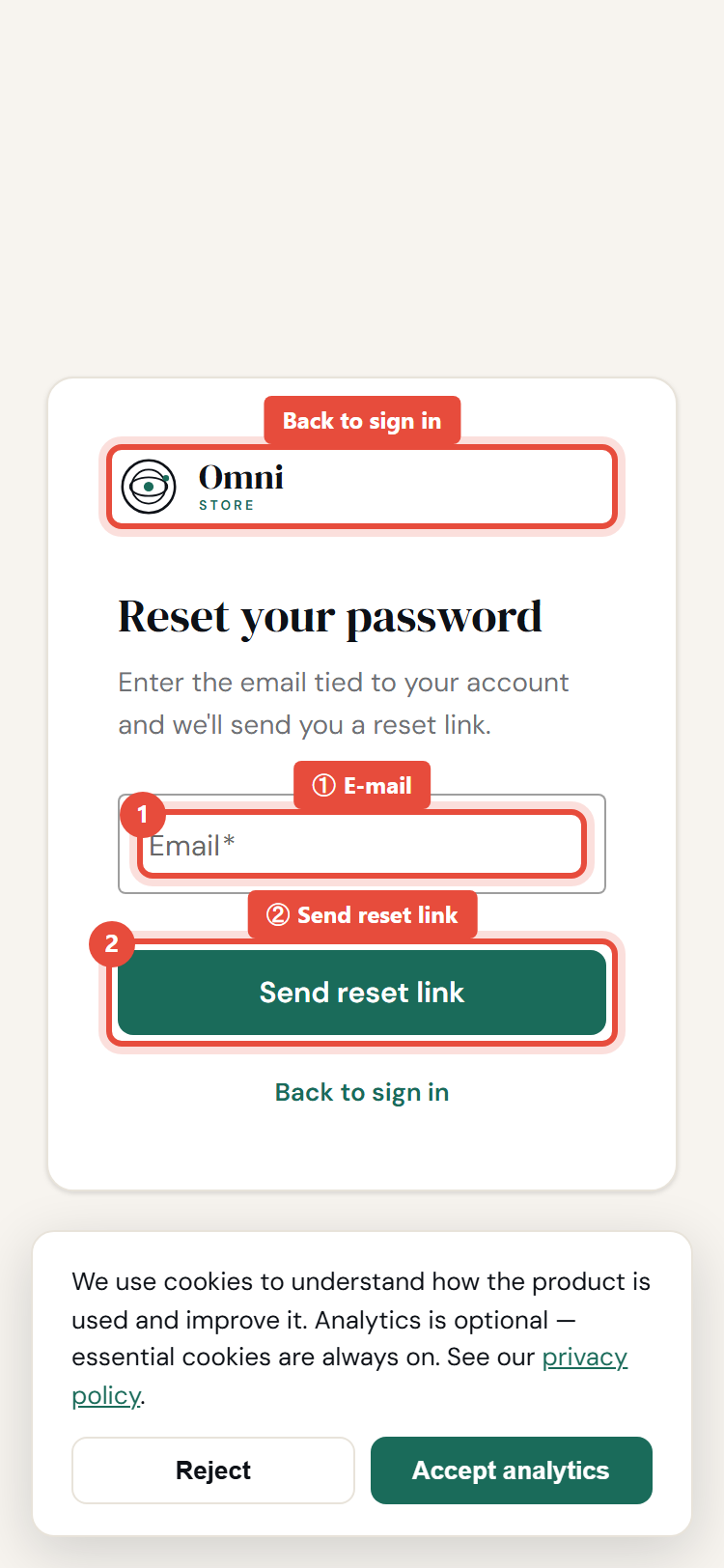
For your privacy, the reset screen gives the same confirmation whether or not an email is registered - so attackers can't use it to discover who has an account. If you don't get an email, make sure you used the right address and check your spam folder. Reset requests are rate‑limited, so wait a little while before trying again.
Verify your email
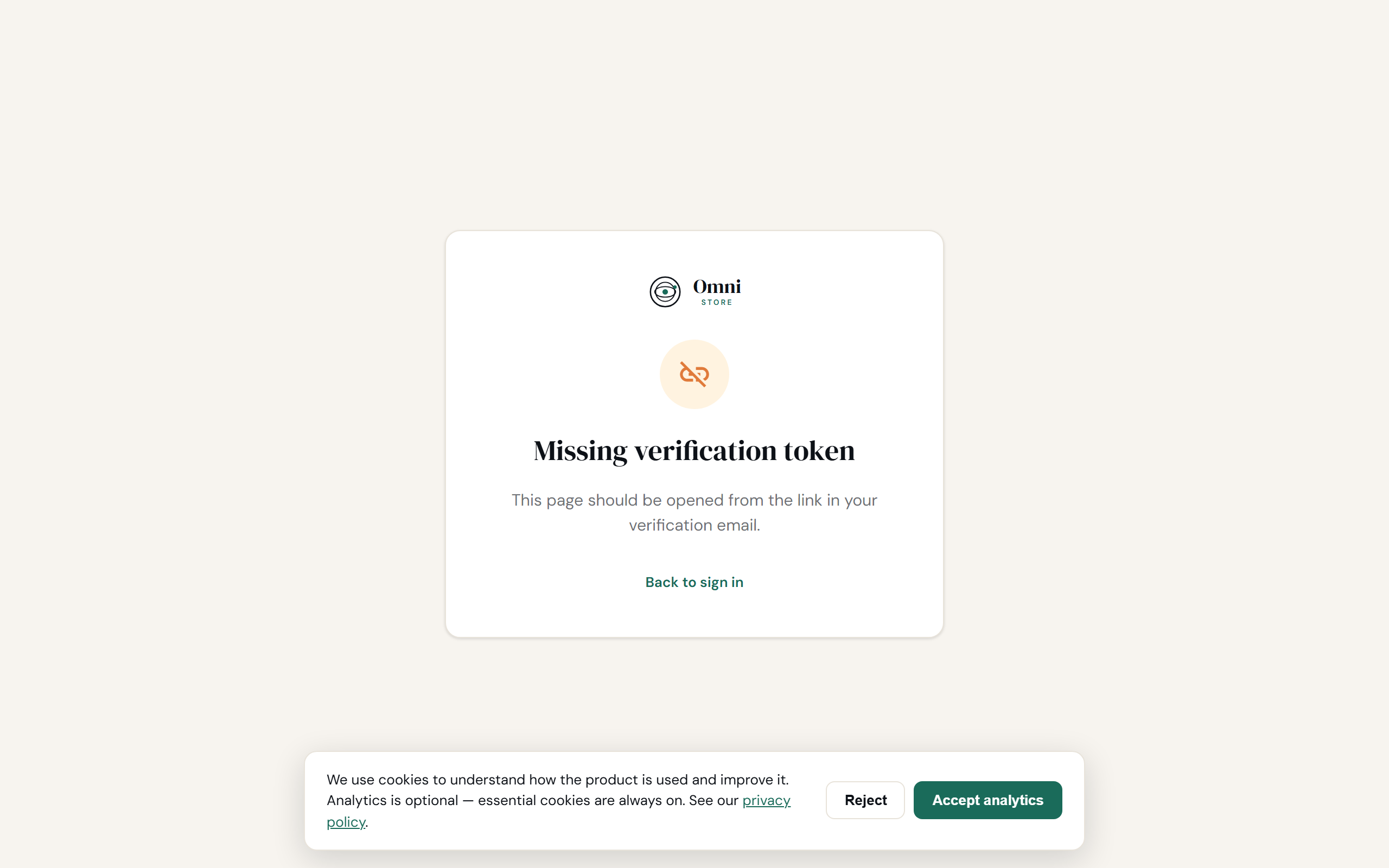
Verifying your email keeps your account secure and unlocks email receipts.
- A verification link is sent when you first register.
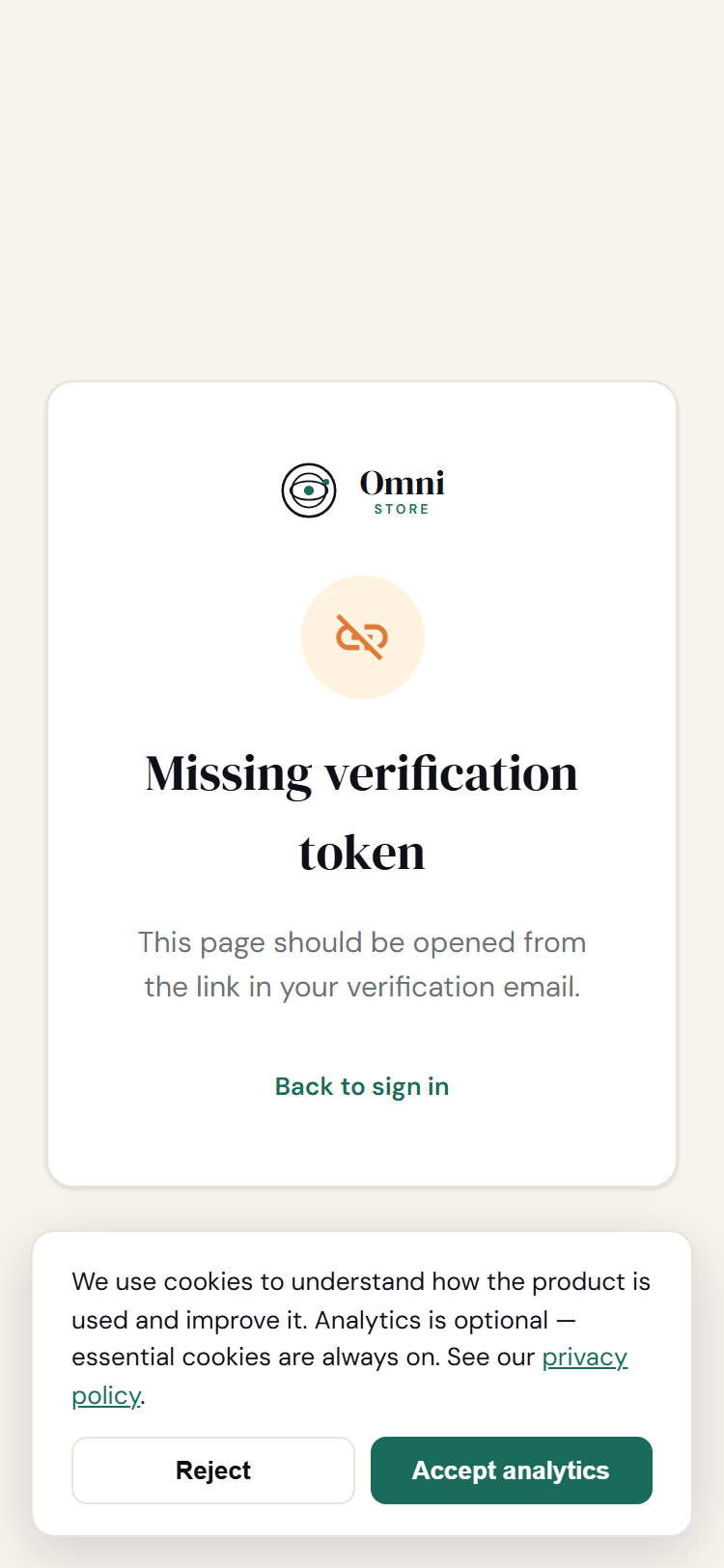
- If it expired or you lost it, request a new one with Resend verification from the Check your email screen.
Mobile view
Keeping your account safe
- Use a unique password you don't use anywhere else.
- Never share your password - instead, invite people as staff so each person has their own login and the right level of access.
- Sign out on shared devices.
- If you think your account is compromised, change your password immediately and review your staff list for anyone who shouldn't be there.