Create your account
Setting up Omni Store takes a few minutes. You'll create an account, verify your email, and your first store is created for you along the way.
Step 1 - Sign up
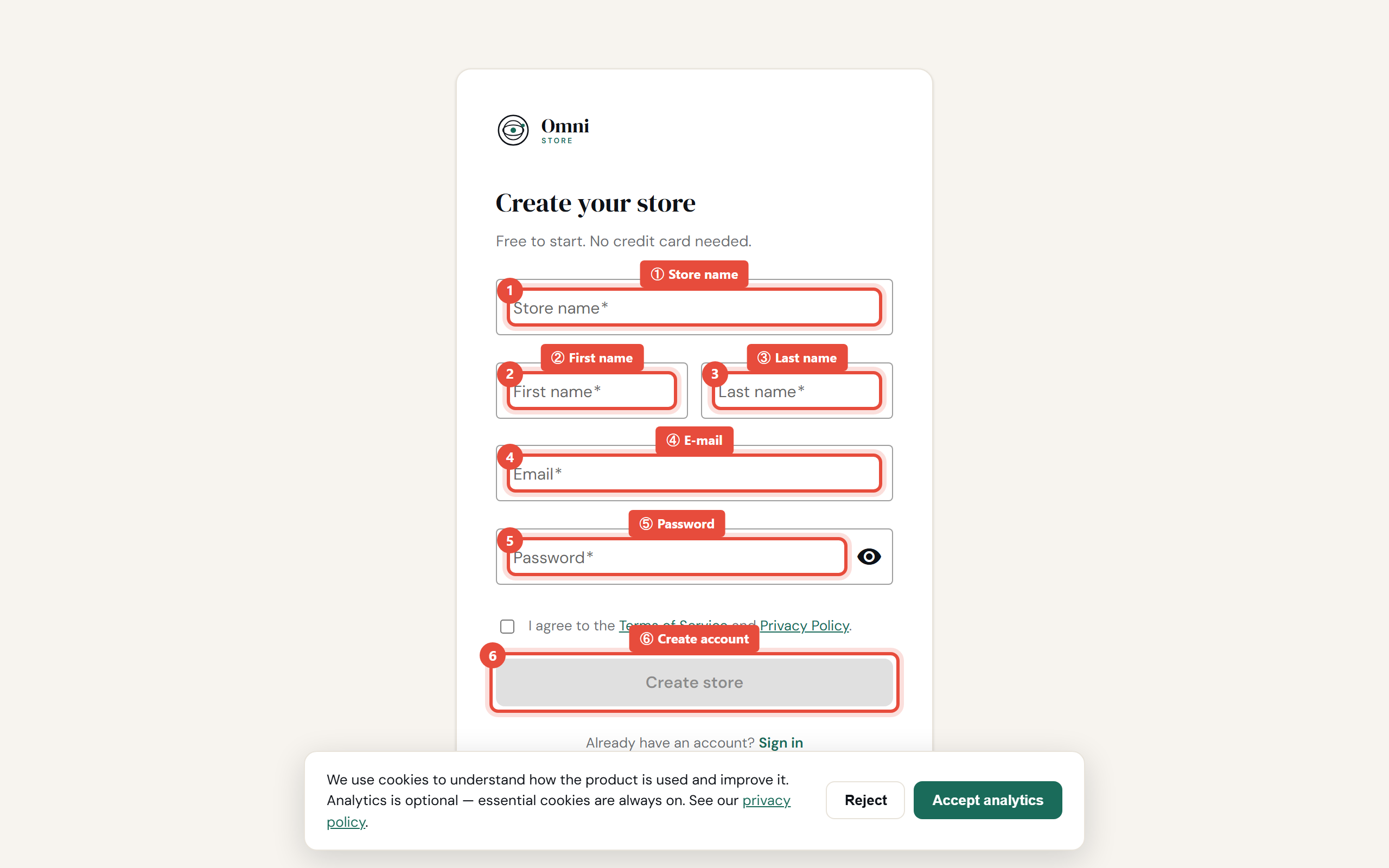
- Go to the Omni Store sign‑up page and select Register.
- Enter your first name, last name, and email address.
- Choose a password. For your security, your password must:
- be 10–128 characters long;
- include at least three of these four: a lowercase letter, an uppercase letter, a number, and a symbol;
- have no spaces at the start or end.
- Enter your store name when prompted - this creates your first store.
- Select Create account.
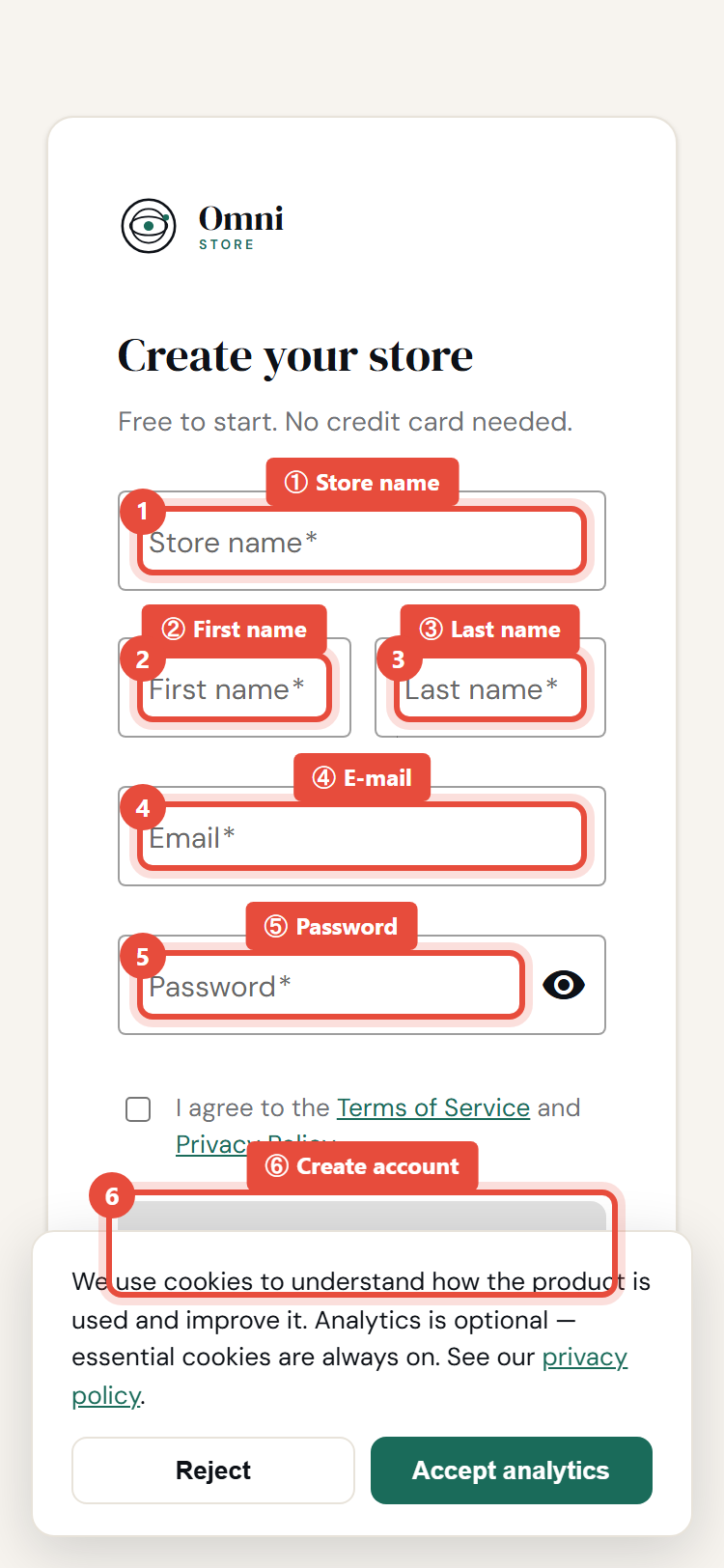
Mobile view
A short phrase with a number and a symbol - like MarketStall#2026 - is both strong and easy to remember.
Step 2 - Verify your email
After signing up, Omni Store sends a verification link to your email address.
- Open the email from Omni Store and select the verification link.
- You'll be taken back to the app with your email confirmed.
Didn't get the email? Wait a minute and check your spam folder. You can request a new one from the Check your email screen by selecting Resend verification. (For security, resend is limited to a few requests per hour.)
Step 3 - Sign in
Once verified, sign in with your email and password. See Signing in if you have any trouble.
What happens next
Your first store is ready. The next step is to make it yours - name, logo, and settings. Continue to Set up your first store.
The account you just created is the store Owner. The Owner has full control and is the only role that can never be removed. You'll learn what each role can do in Staff & roles.