Adding & managing products
Your products are the heart of your catalog - everything you sell. You'll find them under Products.
Owners, Admins, Managers & Inventory handlers can manage products.
Add a product
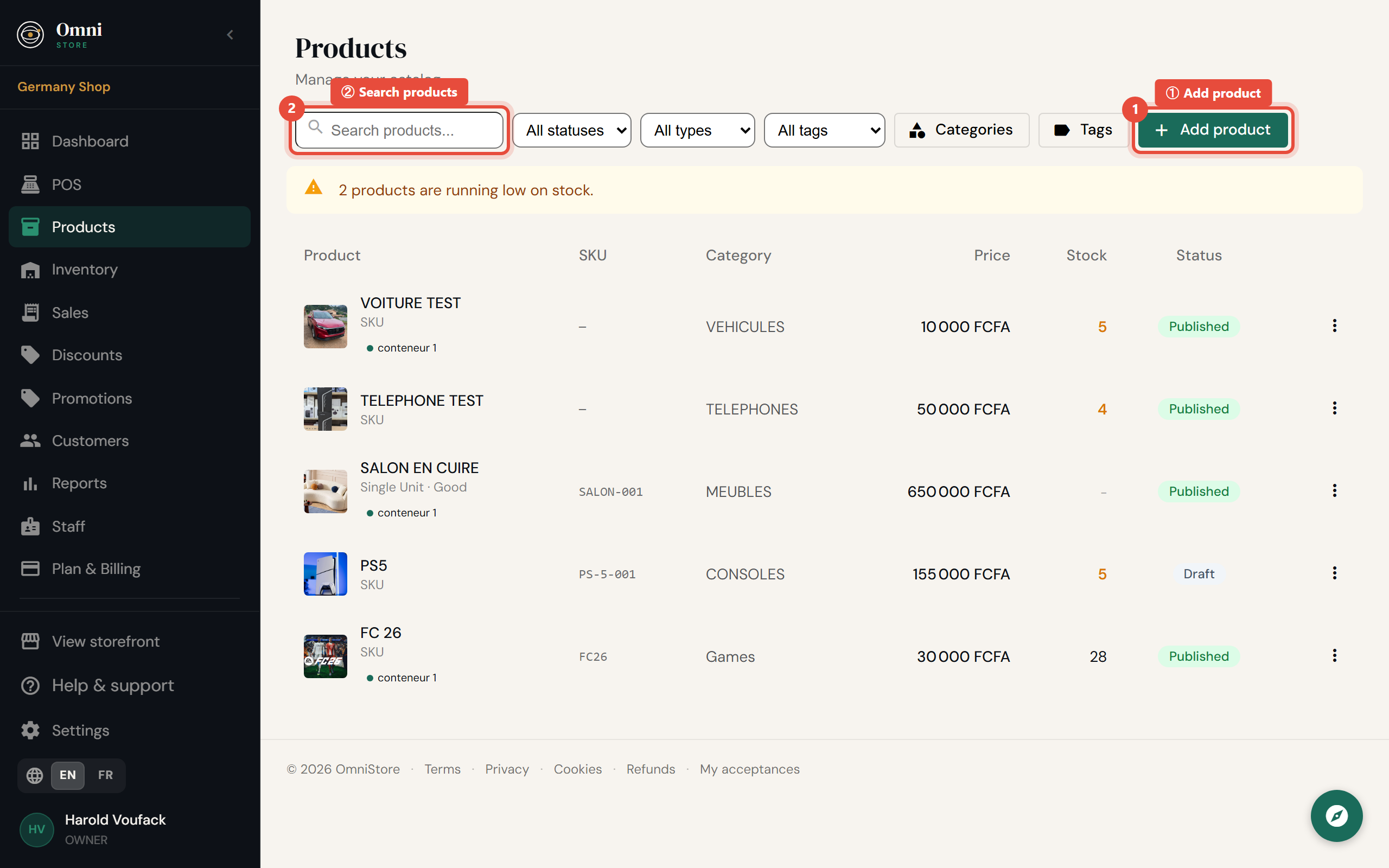
- Go to Products and select Add product.
Mobile view
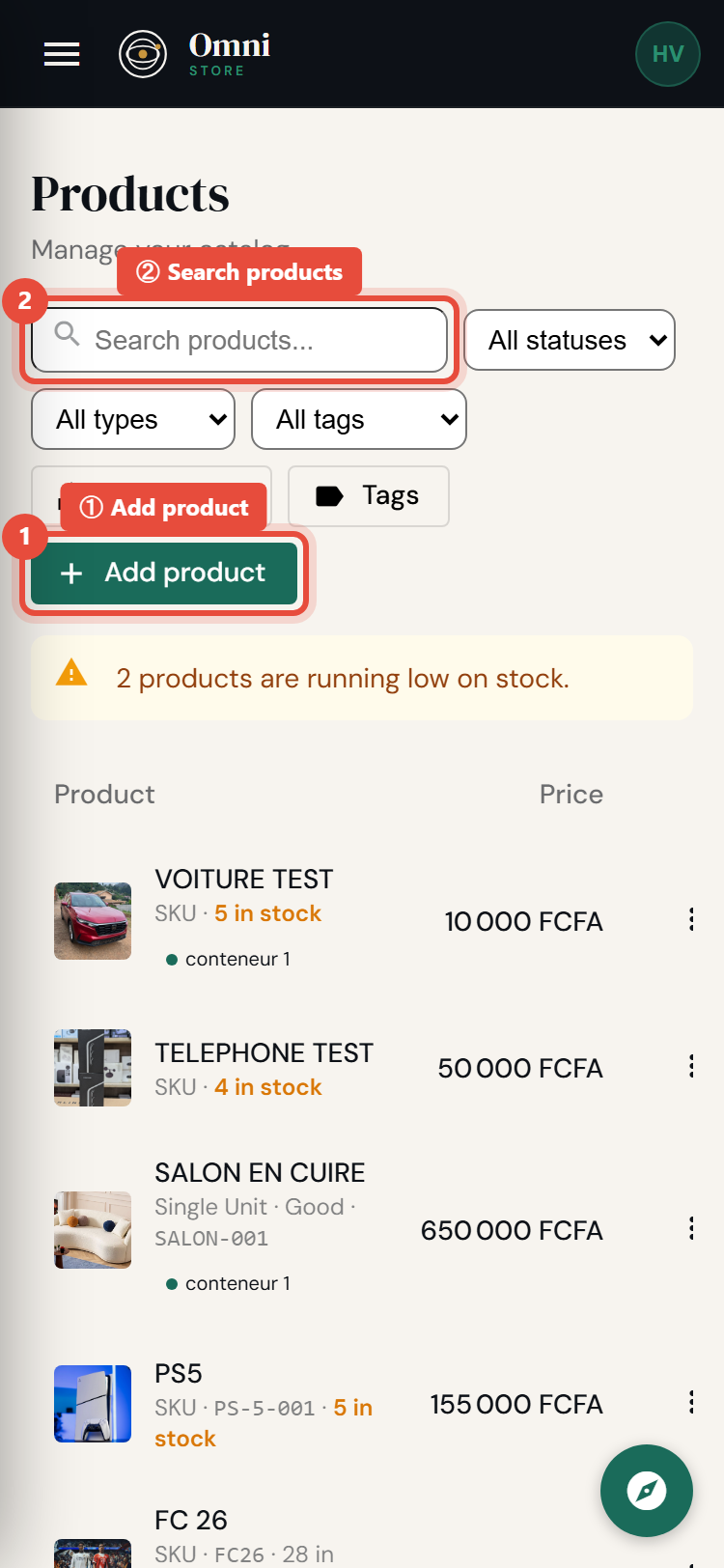
- Fill in the details:
| Field | What it's for |
|---|---|
| Name | What the product is called. Required. |
| Brand | The manufacturer or brand, if relevant. |
| Description | Details customers see on your storefront. |
| Price | What you sell it for. Required. |
| Cost price | What it costs you - used to work out profit in reports. Not shown to customers. |
| SKU code | Your internal stock code, for finding and scanning items. |
| Barcode | The product's barcode, for fast scanning at the till. |
| Category | Groups the product in your catalog and storefront. See Categories & tags. |
| Tags | Flexible labels for filtering and promotions. |
| Stock | The quantity you have on hand. See Inventory. |
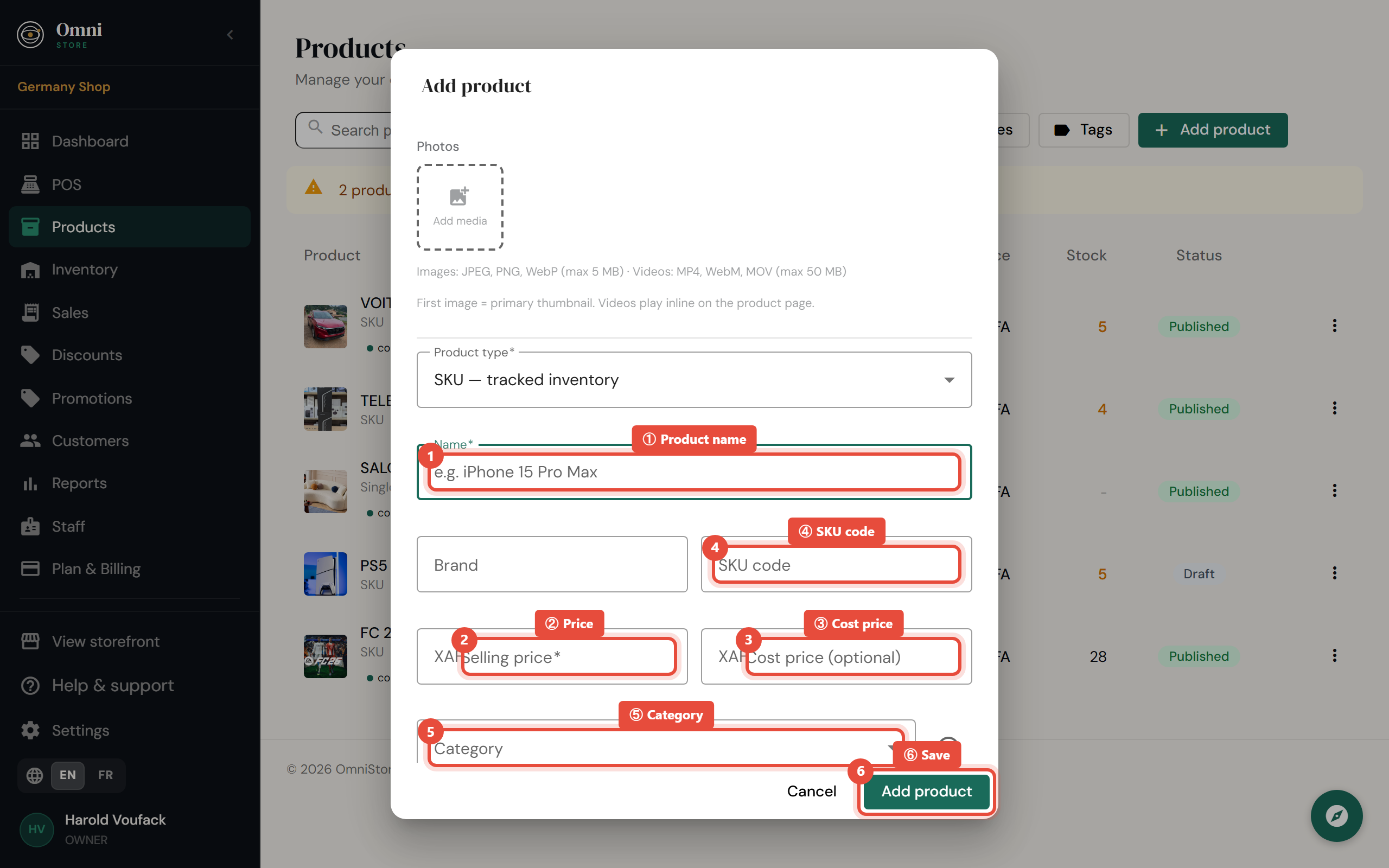
- Click Save.
Mobile view
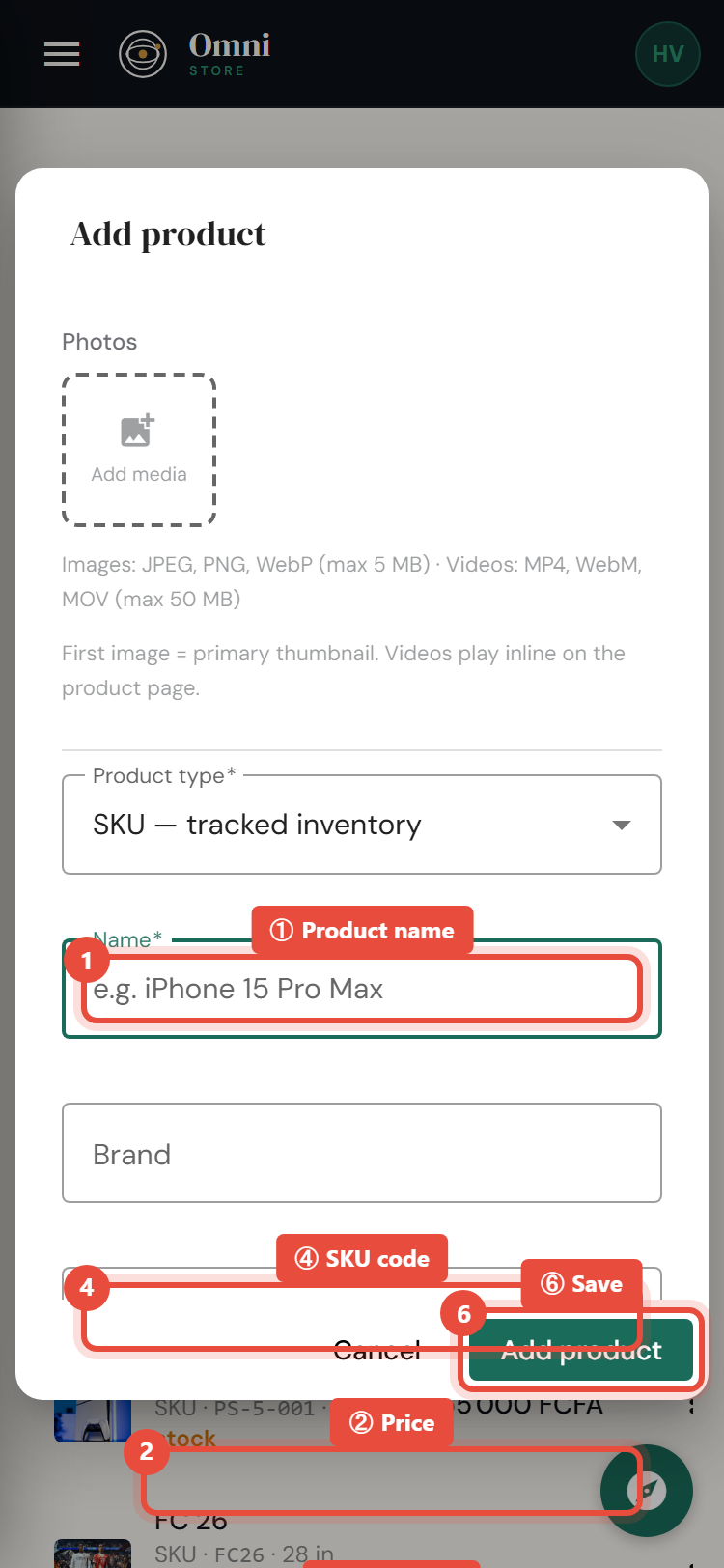
Filling in cost price lets Omni Store show your profit, not just your revenue, in reports. It's worth the extra few seconds.
Product status: draft, published, archived
Every product is in one of three states. This controls where it appears.
- Draft - a work in progress. Not yet available to sell or shown online. New products start here.
- Published - live. Available at the point of sale and on your online storefront.
- Archived - retired. Hidden from sale and the storefront, but kept for your records and past sales.
To move a product between states, open it and select Publish, Archive, or Move to draft. Archiving is reversible and keeps your history intact, which is why it's preferred over deleting.
Edit or delete a product
- Edit - open the product, change any field, and save.
- Delete - removes the product. In most cases, archive instead so your past sales and reports stay complete.
Brands
Omni Store remembers the brands you've used so you can pick them quickly and filter your catalog by brand.
Low‑stock products
Omni Store flags products running low so you can reorder in time. See the low‑stock list and how alerts work in Inventory.
How many products can I have?
Your plan sets a product cap:
- The free entry plan allows up to 25 products.
- Paid plans raise the cap, and higher plans make it unlimited.
Archived products don't count the same as live ones - but if you hit your cap, upgrading lifts it. See Plans & pricing.