Inviting & managing staff
Give each person on your team their own login with the right level of access. You'll find this under Staff.
Owners & Admins can invite, remove, and change roles. Managers can view the team and invitations and cancel pending invitations.
Invite a team member
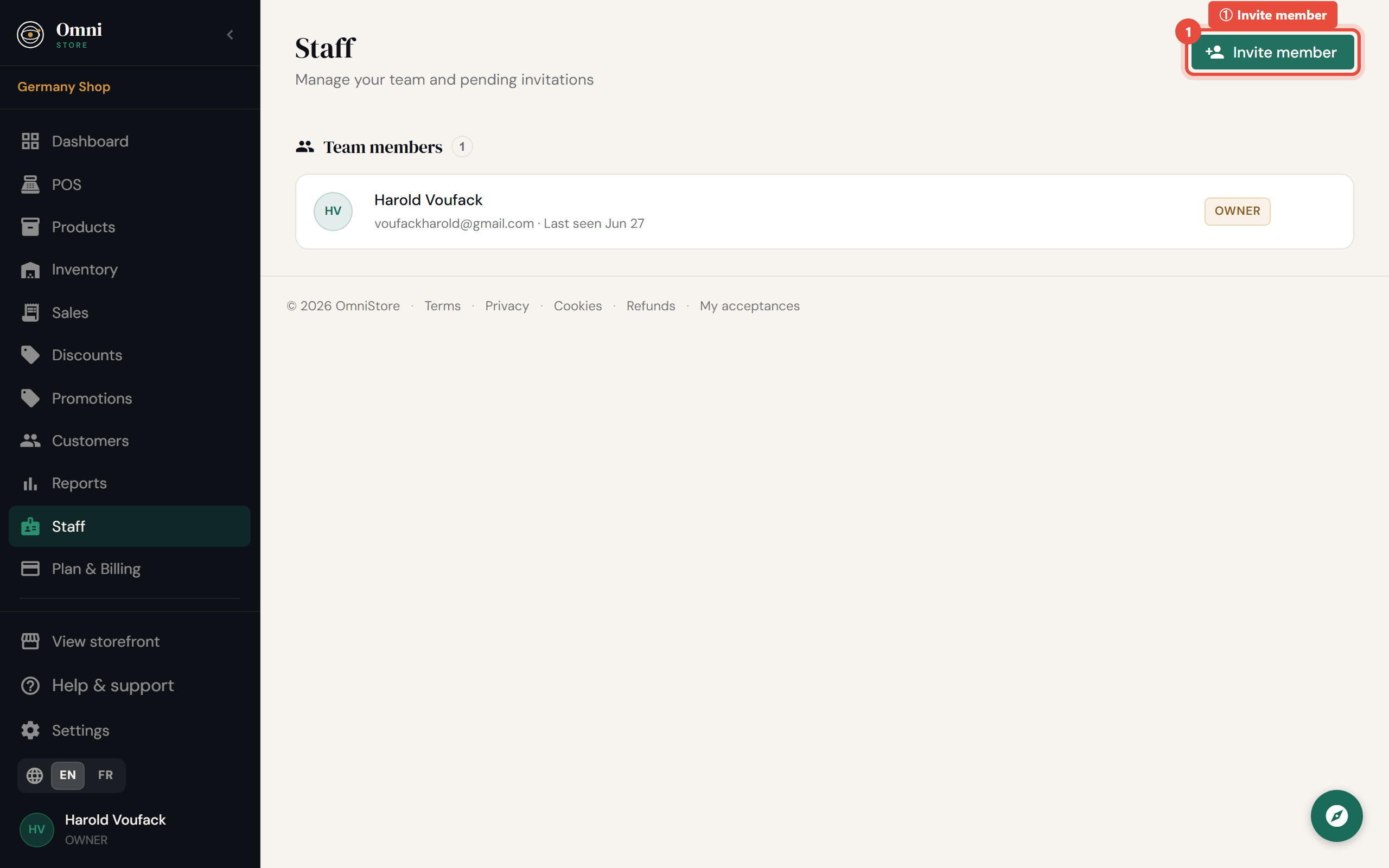
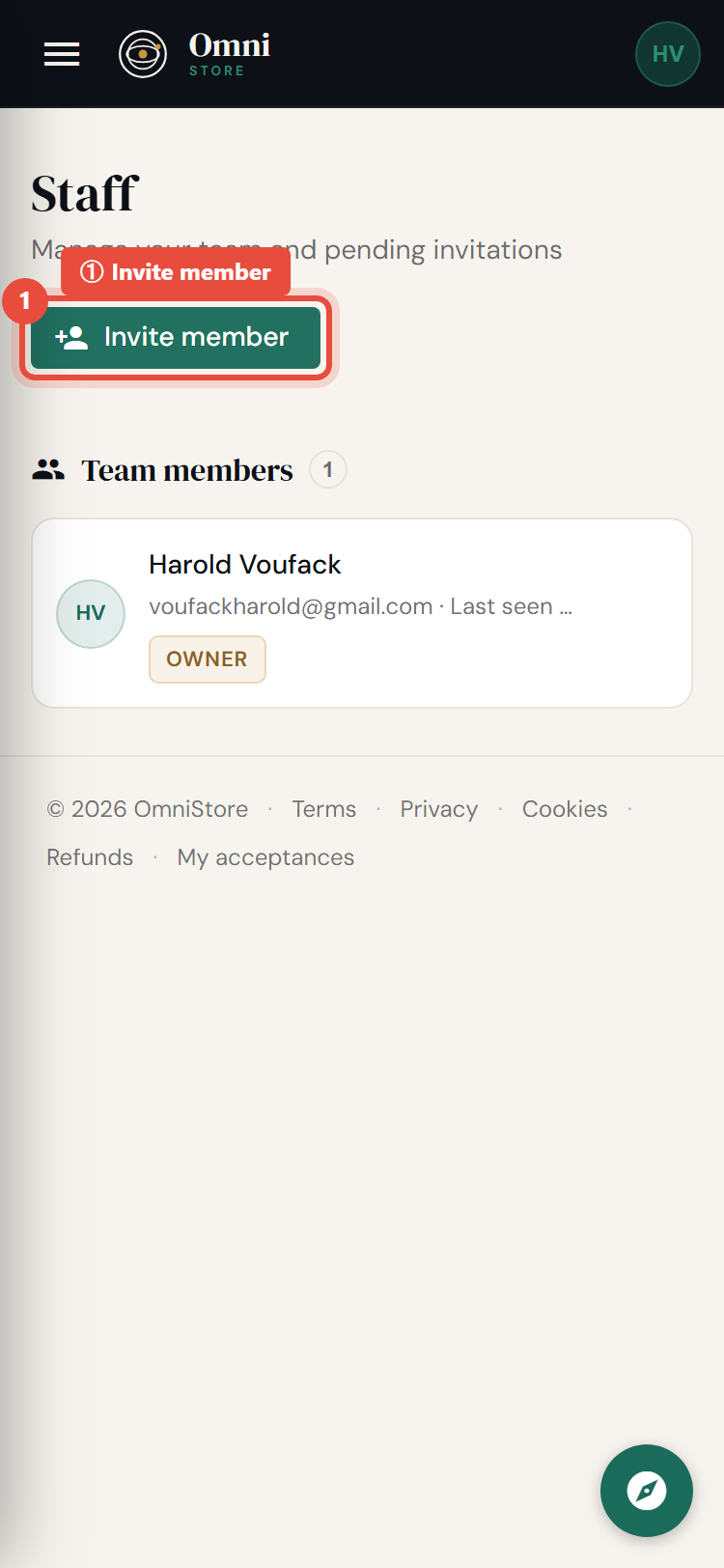
- Go to Staff and select Invite member (or Invite staff).
Mobile view
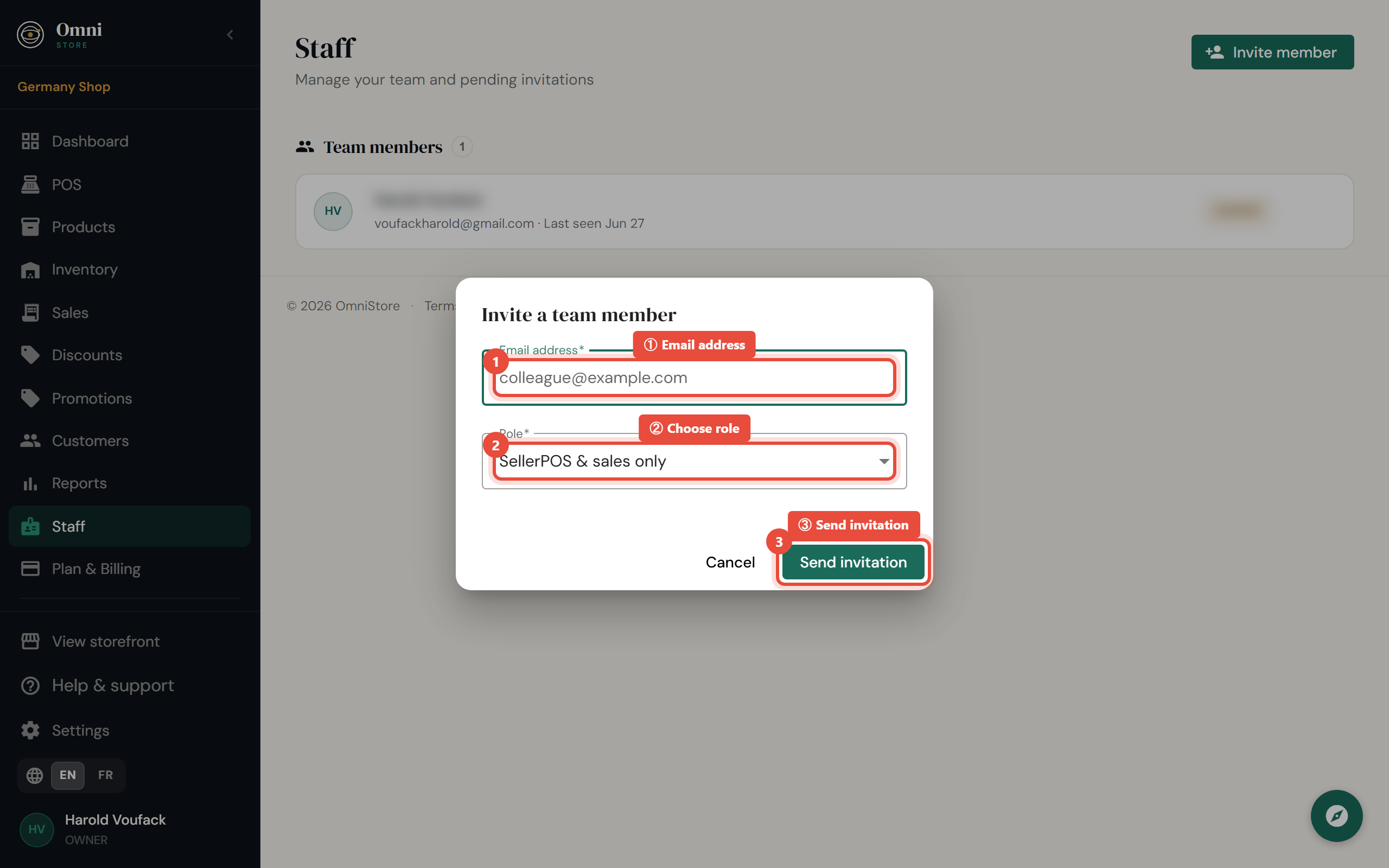
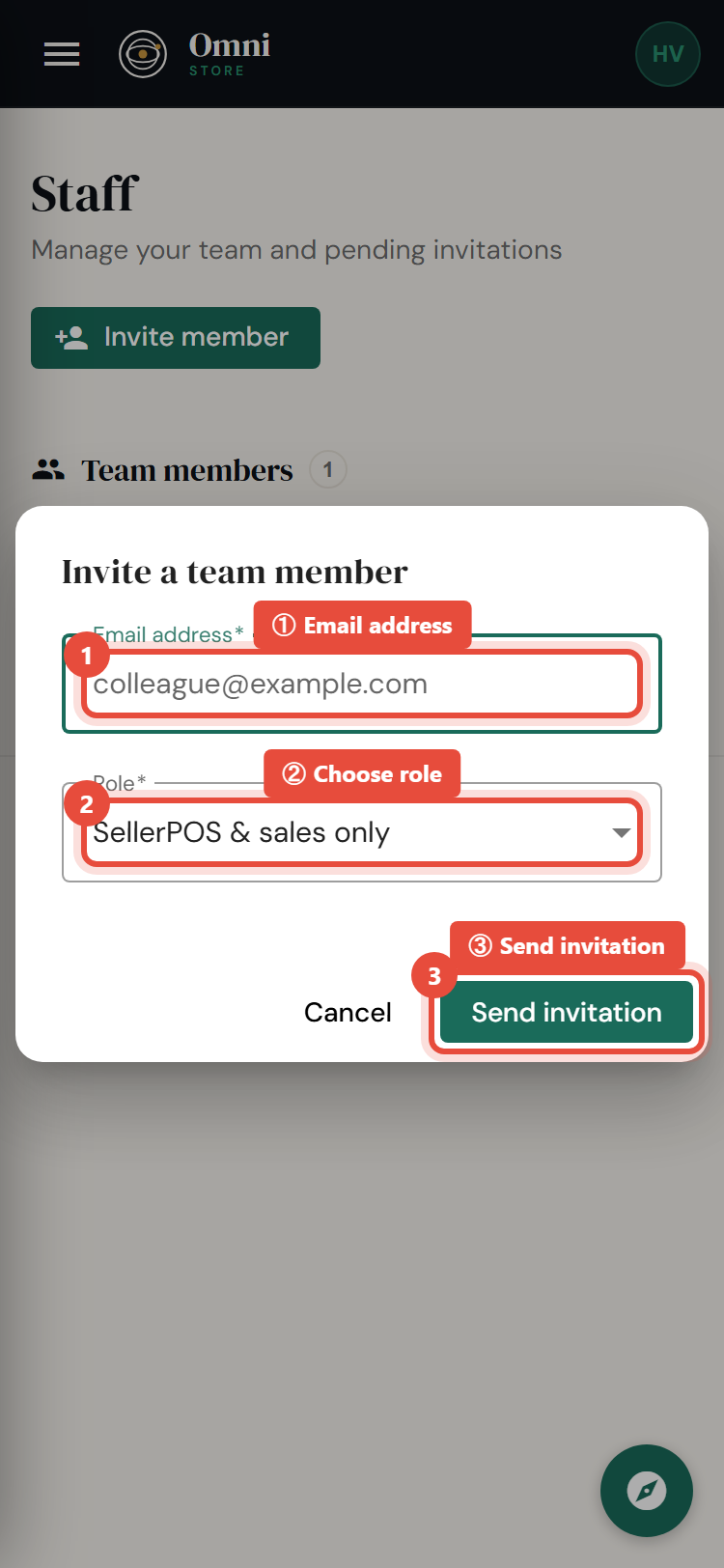
- Enter the person's email address.
- Choose their role - see Roles explained to pick the right one.
- Click Send invitation.
Mobile view
The person receives an email with an invitation link. The invitation stays pending until they accept it, and it counts toward your plan's member limit while it's pending.
Accepting an invitation
If you've been invited:
- Open the invitation email and select the link.
- You'll see the store you're joining and your role.
- Create your password (or sign in if you already have an Omni Store account).
- You're in - you'll land on the store's dashboard with your role's access.
Invitation links are single‑use and time‑limited. If yours has expired, ask the person who invited you to send a new one.
Cancel a pending invitation
If you invited the wrong person or no longer need them:
- Go to Staff → Invitations.
- Find the pending invitation and select Cancel.
The link stops working immediately.
Change someone's role
- Go to Staff and find the member.
- Select Change role and choose the new role.
Remember: you can't change your own role, and the Owner role can't be reassigned here.
Remove a member
- Go to Staff and find the member.
- Select Remove.
The person loses access right away. You can't remove yourself or the Owner. Removing staff is recorded for security, so there's always a trail of who changed access and when.
Reactivate a member
Removed someone by mistake, or a seasonal worker is back? Find them in the staff list and select Reactivate to restore their access with their previous role.
Give each person the least access they need to do their job. A cashier should be a Seller, not an Admin. It's safer and clearer, and you can always upgrade someone later.