Managing inventory
Omni Store keeps your stock count accurate automatically, and gives you a clear record of every change. You'll find this under Inventory.
Owners, Admins, Managers & Inventory handlers can adjust inventory.
How stock stays up to date
You rarely have to touch stock by hand. Omni Store adjusts it for you:
- Selling a product at the point of sale reduces its stock.
- Voiding a sale returns the items to stock.
- Manual adjustments cover everything else - deliveries, counts, breakages, and theft.
Stock movements
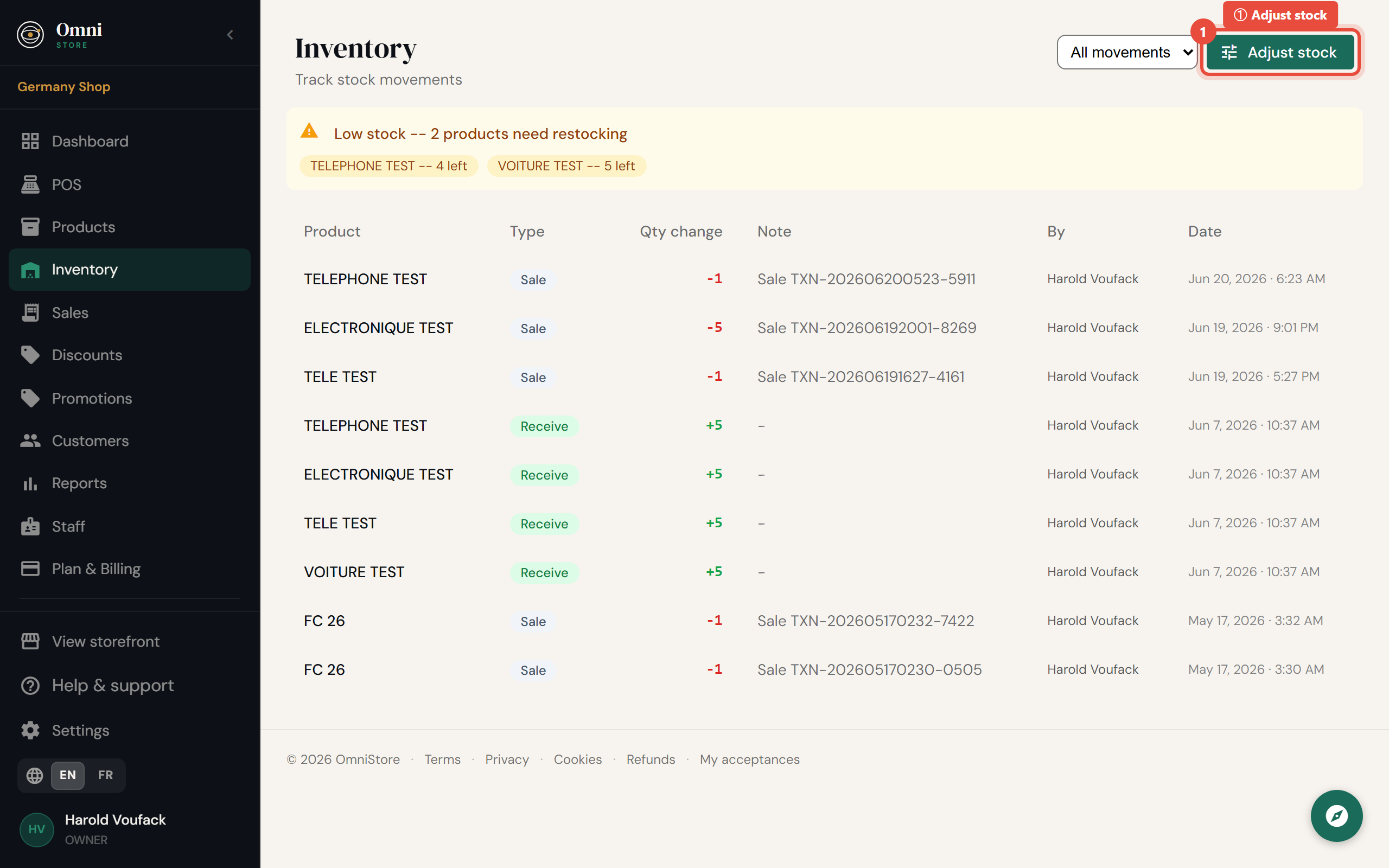
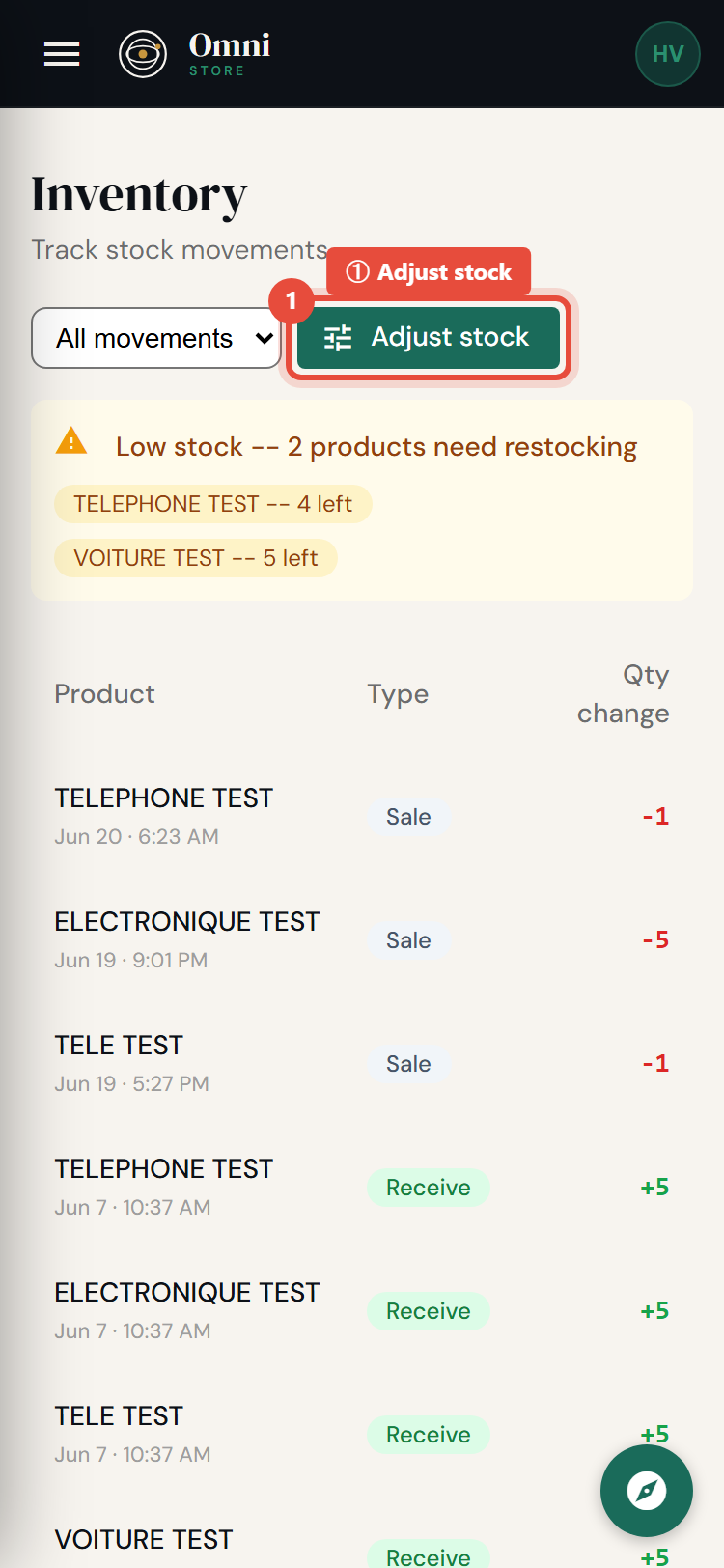
The movements list is the full history of every change to your stock: what changed, by how much, when, and why. Because it's a complete ledger, you can always trace why a count is what it is - useful when numbers don't match the shelf.
Make a manual adjustment
Use an adjustment when stock changes for any reason other than a sale - receiving a delivery, doing a stock count, or writing off damaged goods.
- Go to Inventory and select Adjust stock.
Mobile view
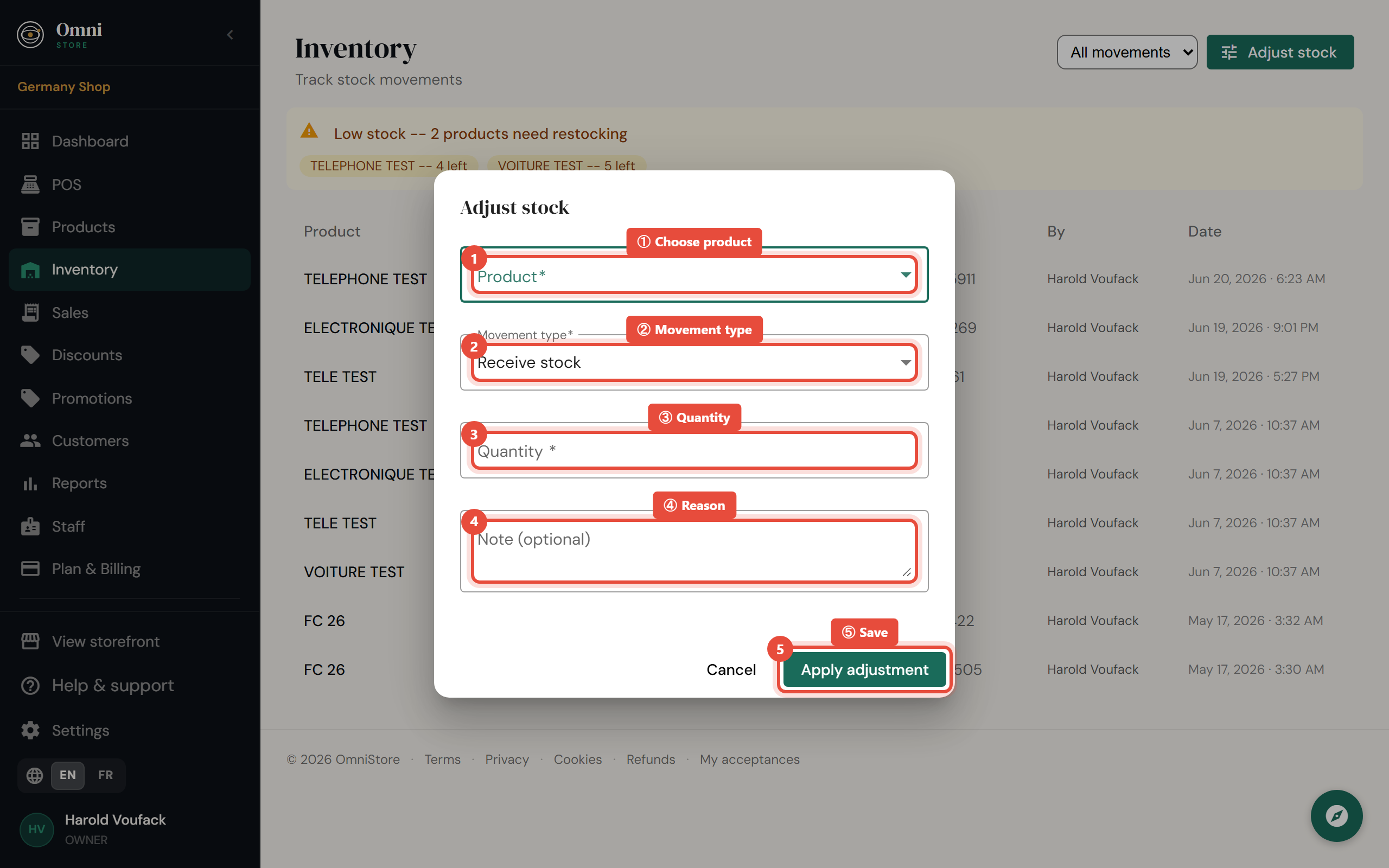
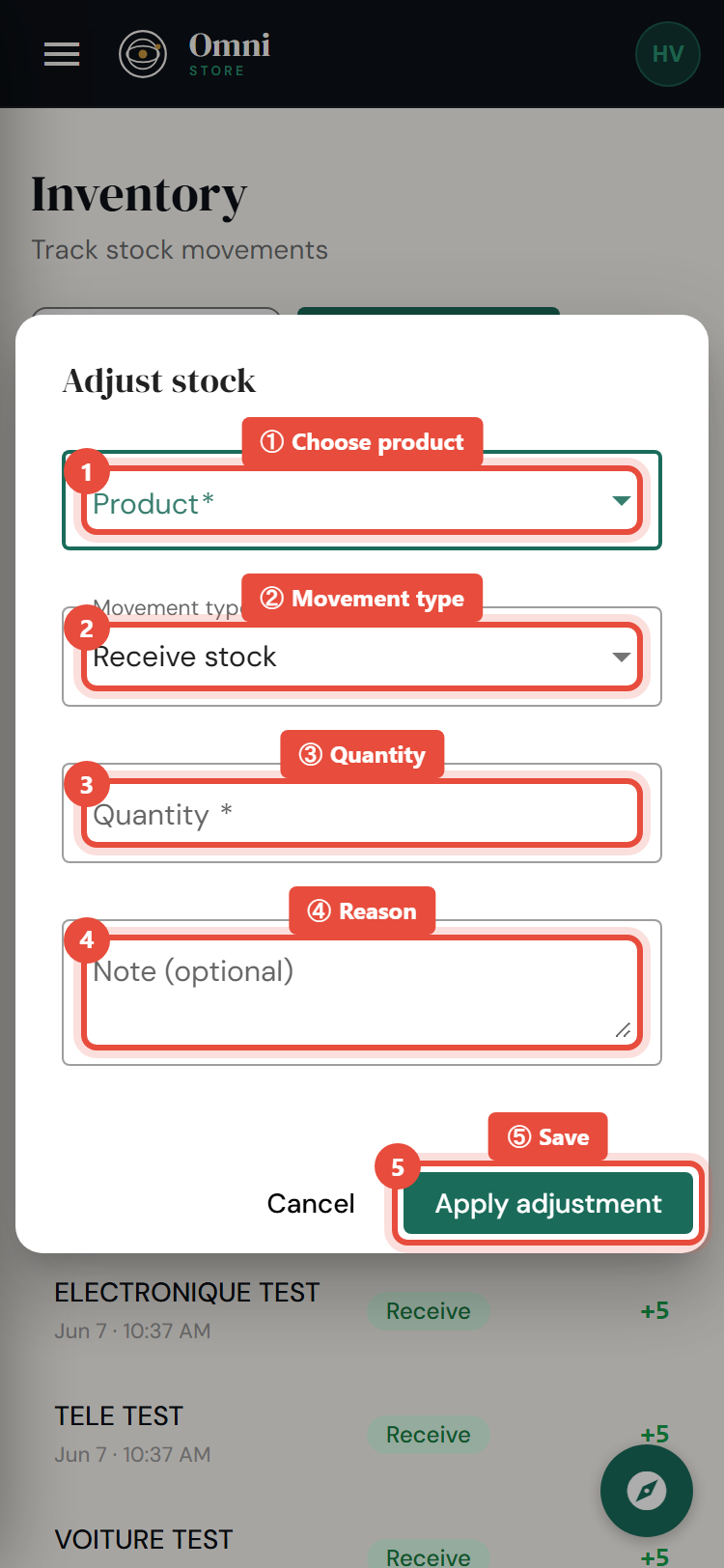
- Choose the product.
- Enter the new quantity or the change (for example, +50 for a delivery or −3 for breakage).
- Add a short reason so the record is clear.
- Click Save.
Mobile view
Every manual adjustment is written to the movements history and kept for security and accountability. This is intentional - stock changes outside the normal sale flow are exactly the kind of thing you want a trail for.
Low‑stock alerts
Omni Store flags products that are running low so you can reorder before you run out.
- The low‑stock view lists every product at or below its threshold.
- Use it as your reorder list at the start of the day.
Keeping cost prices on your products (see Products) also means your inventory's value shows up correctly in reports.
Tips for accurate stock
- Record deliveries as adjustments as they arrive, not at the end of the week.
- Do a periodic stock count and adjust to the real figure - the reason field is perfect for "Monthly count".
- Investigate large gaps between expected and counted stock; the movements history shows where it diverged.